
Installation
Compatibility
We recommend always using the latest version of Power Pack and Review Board together.
Review Board 8.0 and higher includes a compatible version of Power Pack pre-installed. You can upgrade this to newer releases using the instructions below.
Older versions of Review Board don’t include Power Pack by default. You will need to install a compatible version yourself:
Power Pack 6.x requires Review Board 6.0 through 8.x.
Power Pack 5.x requires Review Board 5.0 through 7.x.
Power Pack 4.x requires Review Board 3.0 through 5.x.
Power Pack 3.x requires Review Board 2.0 through 4.x.
Installing/Upgrading Power Pack
To install Power Pack, run the following on the server:
$ sudo pip install -U ReviewBoardPowerPack
Important
Make sure to use the correct version of pip for your system. This has to match the version of Python using for your install.
For example, if Review Board is installed on Python 3.10, use pip3.10.
Restart your web server.
The correct command depends on your web server software and your operating system. On most Linux servers using Apache, you can run:
$ sudo service httpd reload
Enabling the Power Pack Extension
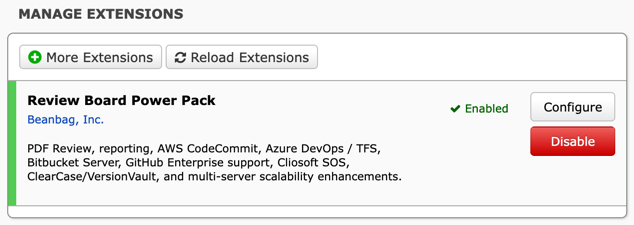
Go to the Extensions page.
This can be found in Administration UI -> Extensions.
Look for Review Board Power Pack.
If this doesn’t appear, make sure you installed Power Pack using the correct version of pip and have restarted your web server.
Click Enable.
Getting and Installing a License
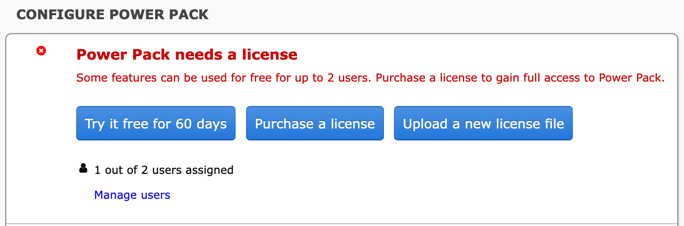
Most features in Power Pack can be used without a license by up to 2 people. This helps administrators try out Power Pack’s features, and is also perfect if you only have a couple people who need to work with features like Reports or Document Review.
You can install a trial license, providing all Power Pack features to all your users for 30 days, or purchase a license.
Getting a Trial License
A trial license allows all the users on your server to use all of Review Board’s features for up to 30 days. After 30 days, the license will convert to a limited 2 user license with no expiration date.
To install a trial license:
Go to the Power Pack configuration page.
This can be found in Administration UI -> Extensions -> Power Pack -> Configure page.
Click Try it free.
Provide any information needed on the form and click I’m Ready to Try!
Your trial license will be automatically downloaded and installed.
You’ll also receive an e-mail with your trial information. The e-mail address provided will be used to create an account and log in to the License Portal, where you can manage your license.
Purchasing a License
If you’re ready to purchase a license:
Go to the Power Pack configuration page.
This can be found in Administration UI -> Extensions -> Power Pack -> Configure page.
Click Purchase a license
Fill in the required information, including:
Your first and last name
Your e-mail address
The company name
Your server’s install key (found in Review Board in Administration UI -> Support Settings)
How many licensed users you need
Your payment method (credit card or purchase order/invoice)
The payment cycle (yearly or monthly)
Credit card or optional PO number
Click the Buy button.
If you’re paying by credit card, you’ll be billed immediately for a new subscription, and will receive a license as soon as the card is charged.
If you’re using a Purchase Order or invoice, we’ll be in contact with you to complete your purchase.
Installing a Purchased License
If you’ve purchased a license, you’ll have been sent a license file that you can install:
Go to the Power Pack configuration page.
This can be found in Administration UI -> Extensions -> Power Pack -> Configure page.
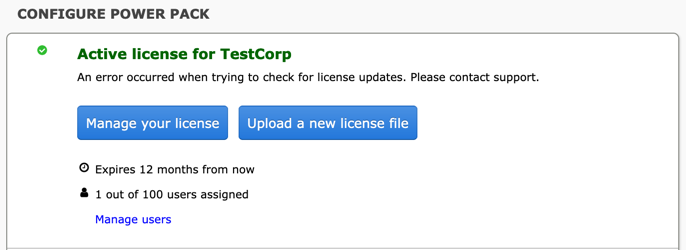
Click Upload a new license file and browse for the license file.
Your license should activate and you should see the new license terms.
Assign Licensed Users
If you’re using a trial license, all users will automatically be able to test and use Power Pack features immediately.
If you’re using a purchased license, you’ll need to assign users before they can use Power Pack features. To assign users:
Go to the Power Pack configuration page.
This can be found in Administration UI -> Extensions -> Power Pack -> Configure page.
Click Manage users
From this page, you can add individual users to the license, import batches of users into your license, and enable automatic user licensing.
Users can be removed from your license and new users assigned to their seat at no charge.